Compliance Documents
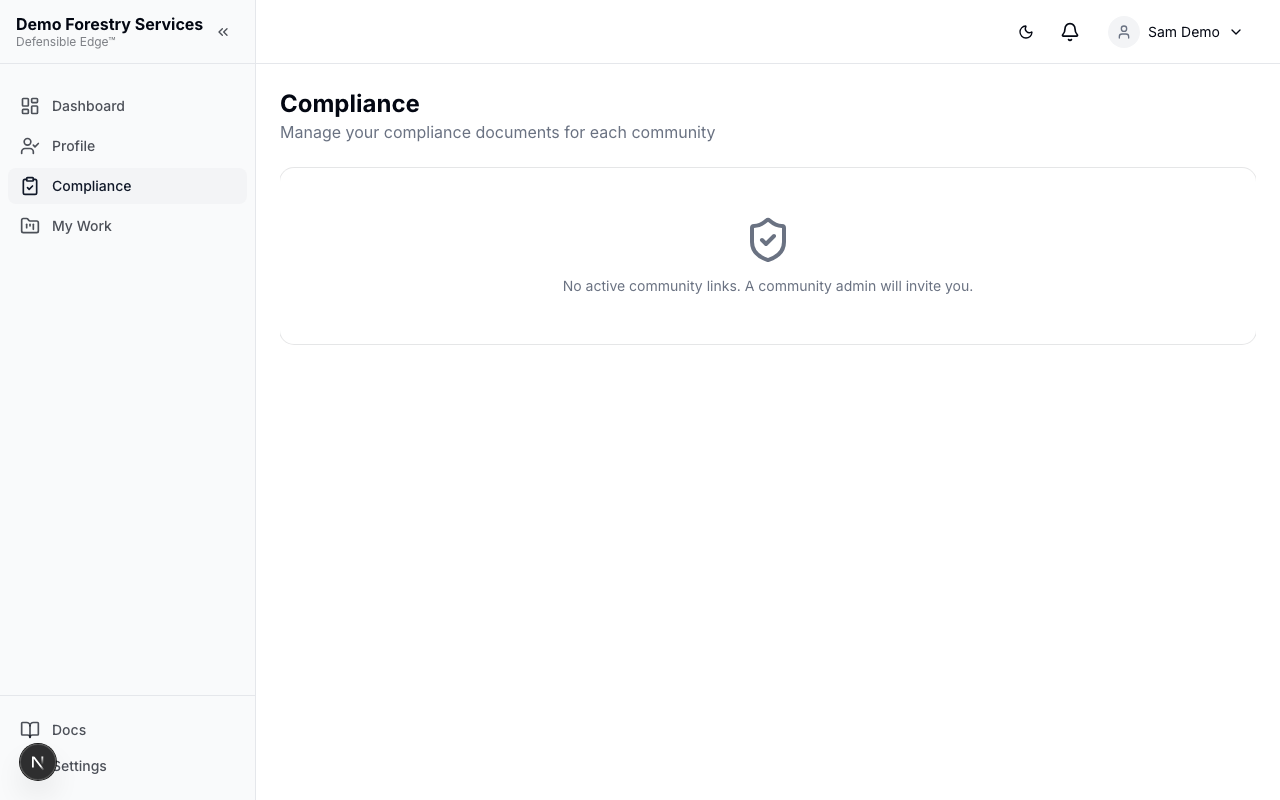
Upload and manage your compliance documents from the Compliance page. Documents are organized by community.
Uploading Documents
- Navigate to Compliance in the sidebar
- Find the community you want to upload to
- Click Add Document
- Fill in the document details:
- Type — Certificate of Insurance, Workers’ Compensation, or Other Certification
- Document Name — A descriptive name (e.g., “General Liability Policy 2026”)
- Reference / Policy # — Your policy or reference number
- Effective Date and Expiration Date
- PDF Document — Upload the PDF file (max 10MB)
- Click Add Document to save
Viewing Documents
Each document shows:
- Document name, type, and reference number
- Effective and expiration dates
- Compliance status badge (Current, Expiring Soon, or Expired)
- View PDF icon to open the uploaded file in a new tab
Compliance Status
| Status | Meaning |
|---|---|
| Current | Document is valid and not expiring within 30 days |
| Expiring Soon | Document expires within 30 days |
| Expired | Document has passed its expiration date |
Community admins receive email notifications when your documents are expiring or expired, so keep them up to date to maintain your active status.
Last updated on