Initial Application
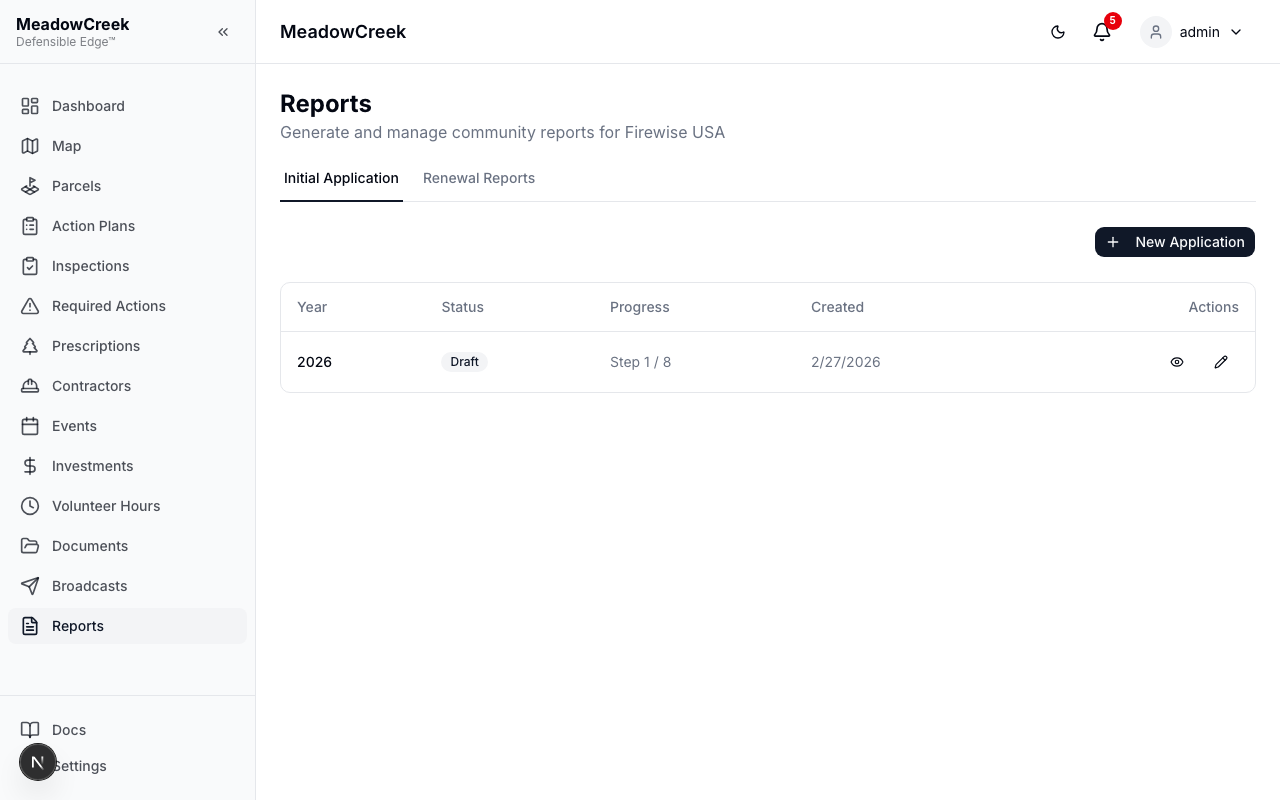
The Initial Application wizard walks you through the 8-step process to complete your community’s Firewise USA® recognition application.
Application List
The main view shows all initial applications with:
| Column | Description |
|---|---|
| Year | Application year |
| Status | Draft, Finalized, or Submitted |
| Progress | Current step (e.g., Step 3/8) |
| Created Date | When the application was started |
Creating a New Application
- Click New Application on the Initial Application tab
- Select the year for the application
- The wizard opens at Step 1
The 8-Step Wizard
Step 1: Overview
Enter your community’s basic information including name, location, and contact details.
Step 2: Risk Assessment
Complete the Home Ignition Zone (HIZ) assessment. Select the risk level for each zone surrounding structures in your community. This step uses radio buttons for each assessment category.
Step 3: Board
Add board and committee contacts who oversee wildfire mitigation efforts. Enter names, titles, and contact information for key personnel.
Step 4: Action Plan
Review your community’s mitigation action plan summary. This step auto-populates from your Action Plans data — the platform pulls in your current plans and projects automatically.
Step 5: Outreach
Document community outreach activities. This step auto-populates from your events and community engagement records.
Step 6: Vegetation
Summarize vegetation management work. This step auto-populates from prescriptions and related project data.
Step 7: Investment
Provide a financial summary of mitigation investments. This step auto-populates from your volunteer hours and investment records, calculating the total community investment.
Step 8: Review
Review all sections of the application. From this step you can:
- Edit any previous step by clicking back
- Finalize the application (Admin only) — locks the application for submission
- Generate PDF — Creates a formatted Firewise USA® application document
- Submit the application (Admin only) — marks the application as submitted and updates your community’s recognition status to “Applying”
Application Status Workflow
- Draft — Application is being filled out. All steps are editable.
- Finalized — Admin has locked the application. No further edits allowed. Ready for submission.
- Submitted — Application has been submitted to NFPA. Community recognition status changes to “Applying.”
Auto-Population
Steps 4 through 7 automatically pull data from the platform:
- Action Plan — Pulls from your active Action Plans and Projects
- Outreach — Pulls from Events data
- Vegetation — Pulls from Prescriptions and related treatment work
- Investment — Pulls from Volunteer Hours (calculated per dwelling unit) and financial Investments
You can review and adjust auto-populated data before finalizing.