In-Person Sign-Ins
Use this flow when you have a tablet or phone at the door of an event and want to record attendees as they arrive — no roster lookup, no account required.
1. Open the event detail page
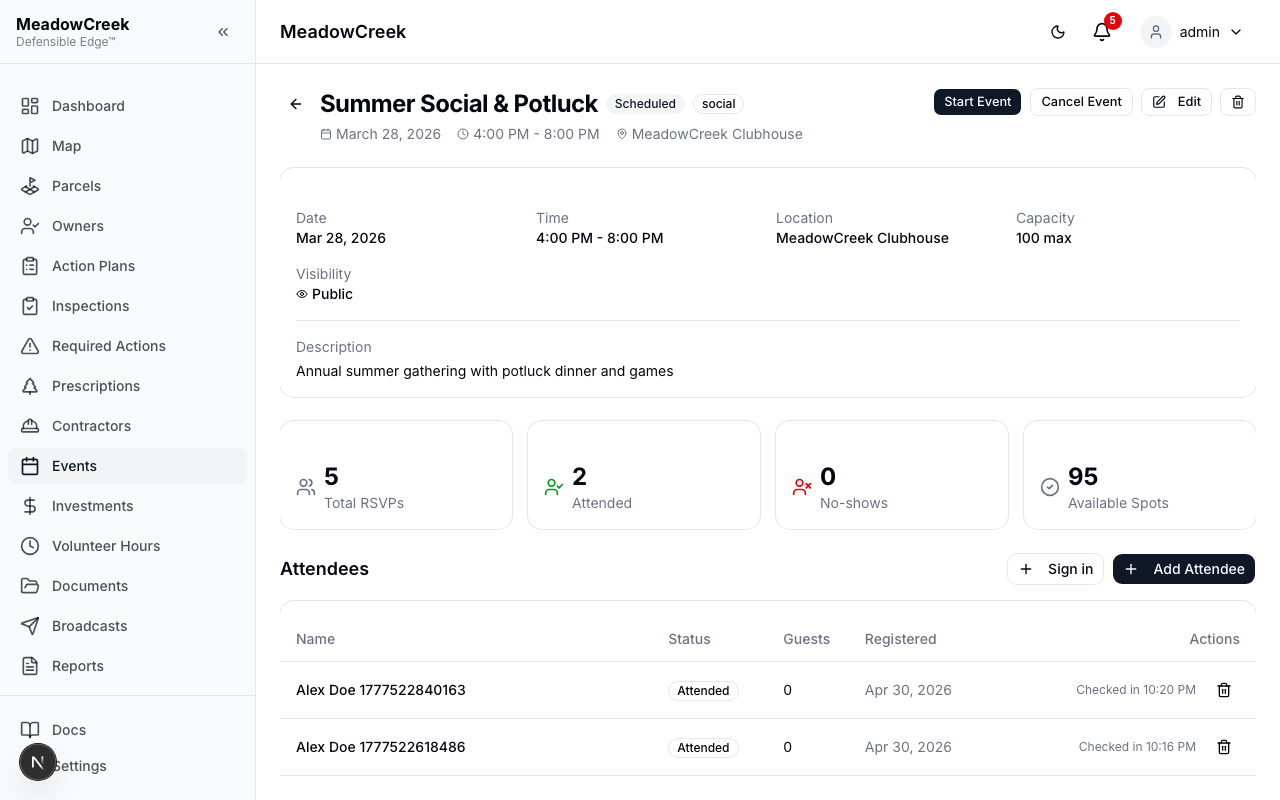
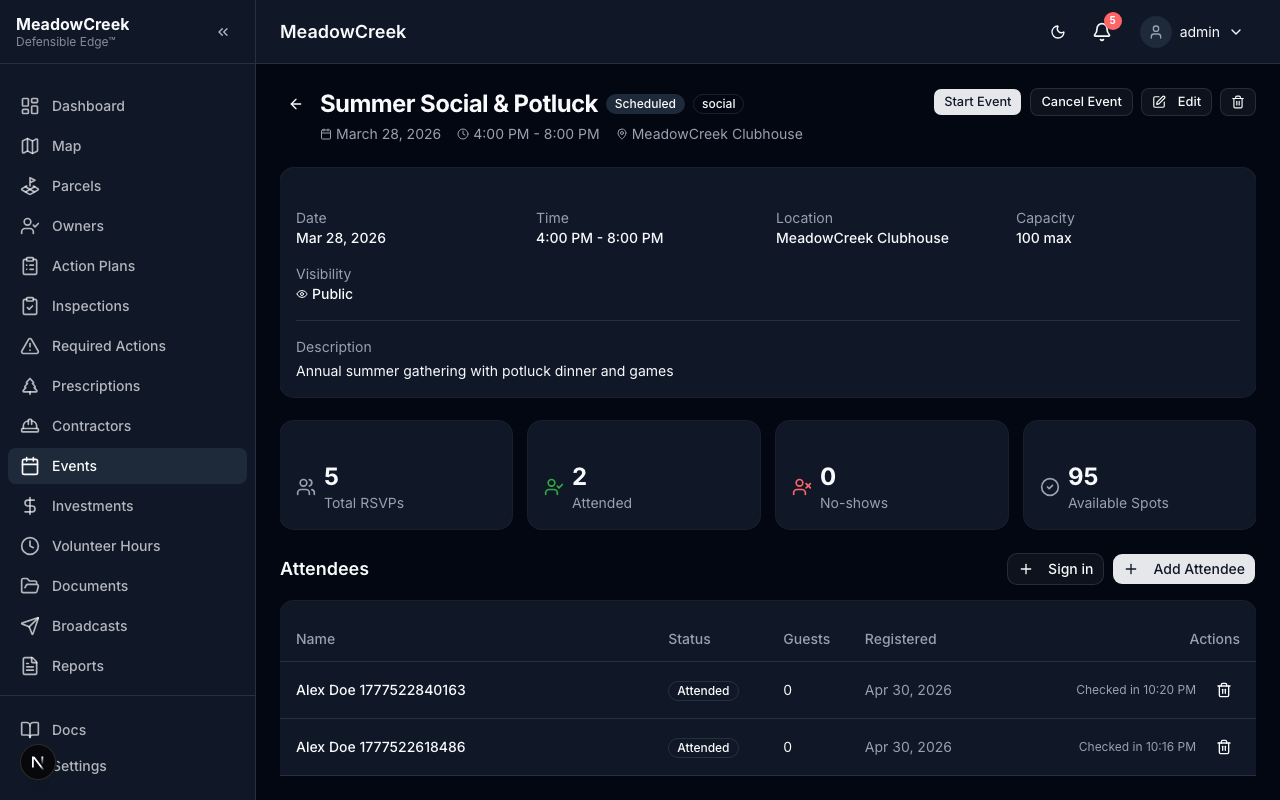
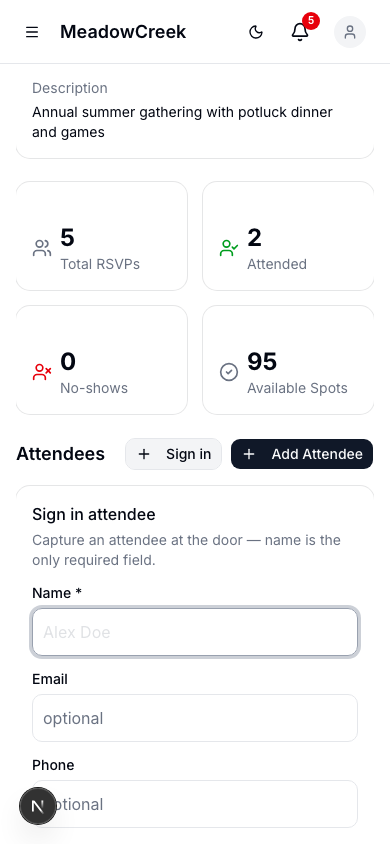
From the Events page, tap the event you’re running. The detail page shows the schedule, description, and the Attendees section.
2. Tap “Sign in”
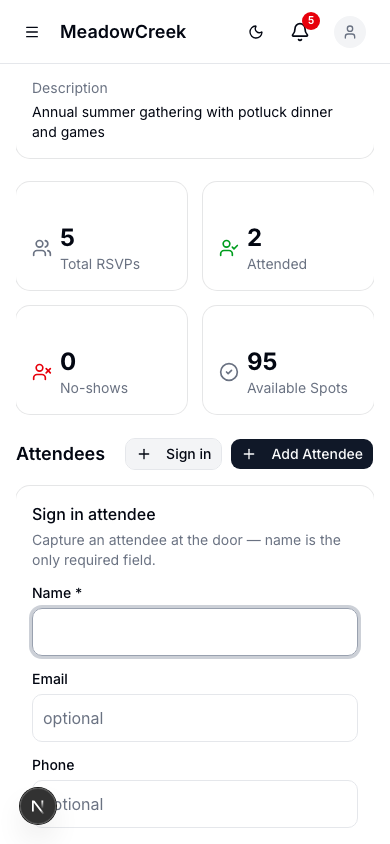
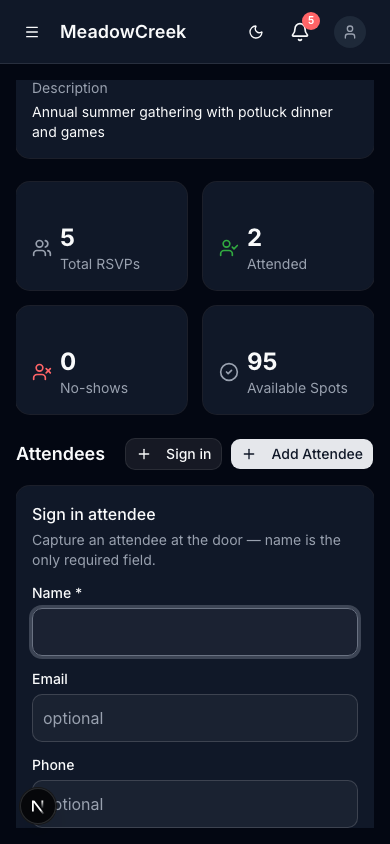
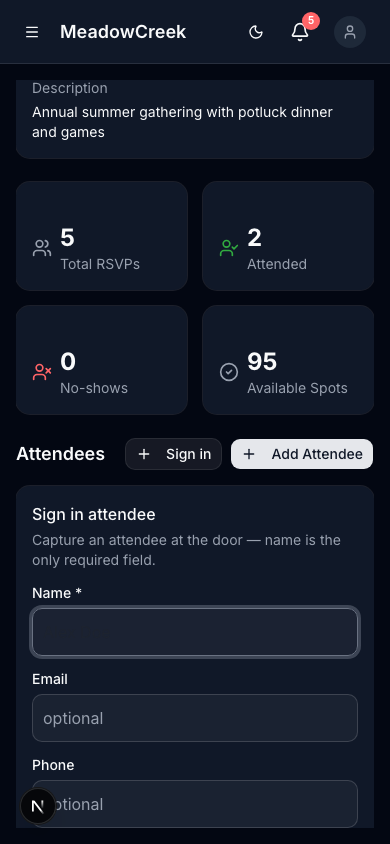
The Sign in button opens a tap-friendly form designed for fast, repeated entry on a phone. The Name field auto-focuses so you can hand the device to the next person and they can start typing immediately.
3. Enter just a name (everything else is optional)
A single first/last name is the only required field. Email and phone are optional and only useful if you intend to follow up. The form accepts free text — no account or resident record needs to exist.
4. Tap “Sign in”
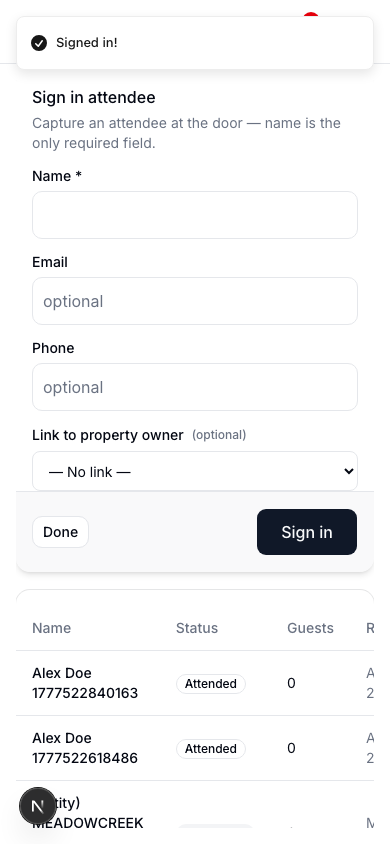
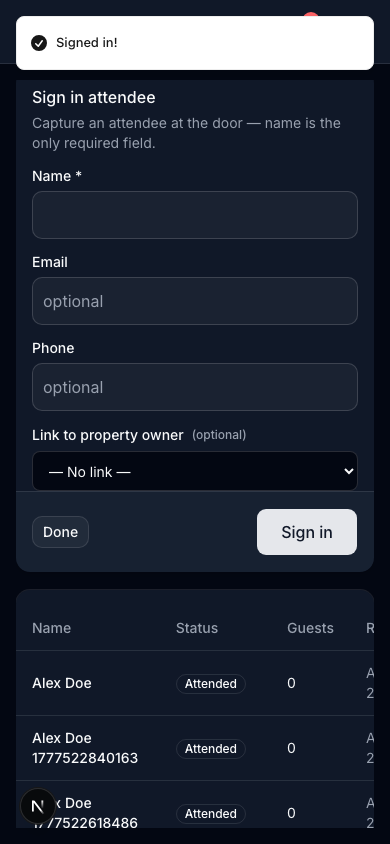
The form clears, the Name field re-focuses, and the attendee appears in the table below with status Attended and a check-in timestamp. Hand the device to the next person.
Tips
- Rapid-fire entry is the design goal: name → tap → next person, no scroll, no extra fields.
- If you accidentally double-sign someone in, edit the duplicate row from the Attendees table.
- On Full Platform, you can optionally link the attendee to a Resident or Property Owner record to track engagement over time. On Firewise Core, attendee names live with the event only.