Reports
Generate the official packets you submit to Firewise USA® — the Initial Application when your community first applies for recognition, and the Renewal Report every year afterward to maintain status.
Navigate to Reports in the sidebar.
The Reports landing page redirects automatically based on your community’s current Firewise recognition status. Communities that haven’t been recognized yet land on the Initial Application; recognized communities land on Renewal.
Initial Application
The first packet you submit, used to apply for Firewise USA® recognition. Pulls from your inspections, action plans, and dwelling-unit count to populate the standard application form.
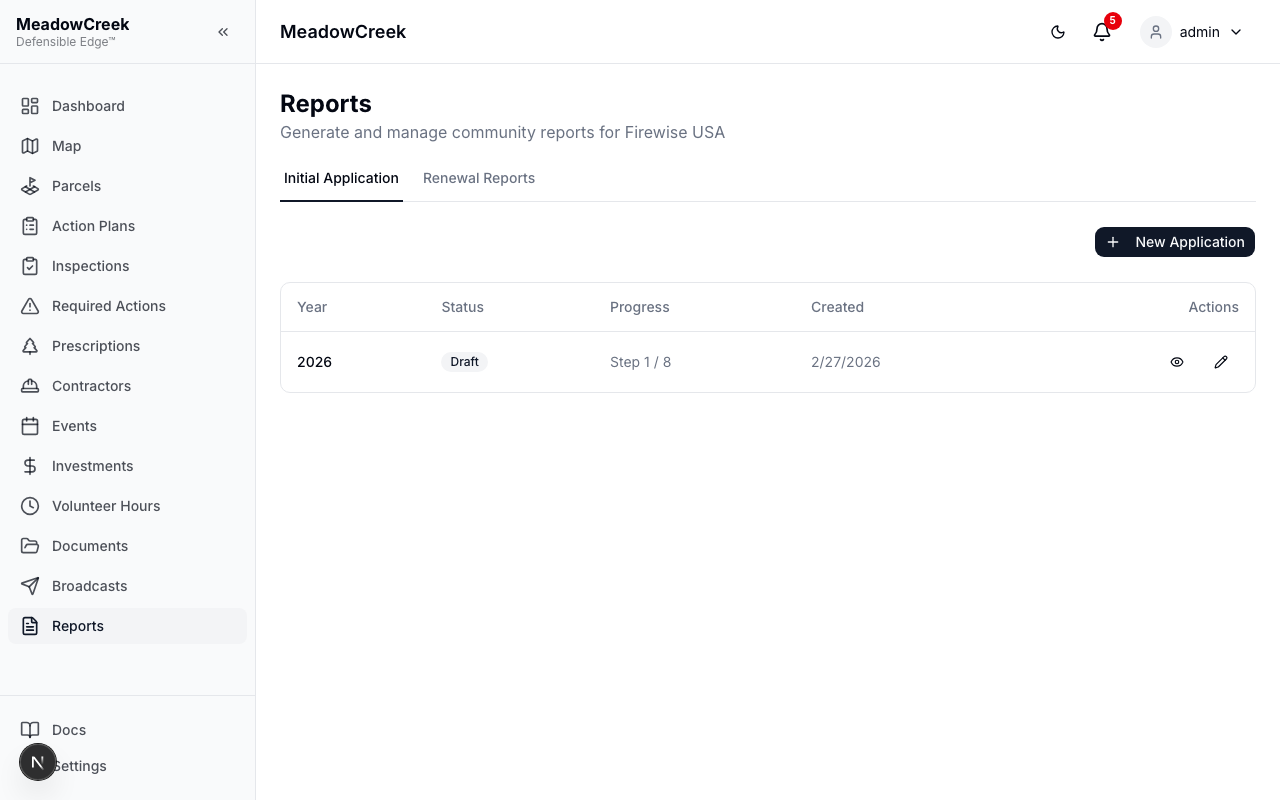
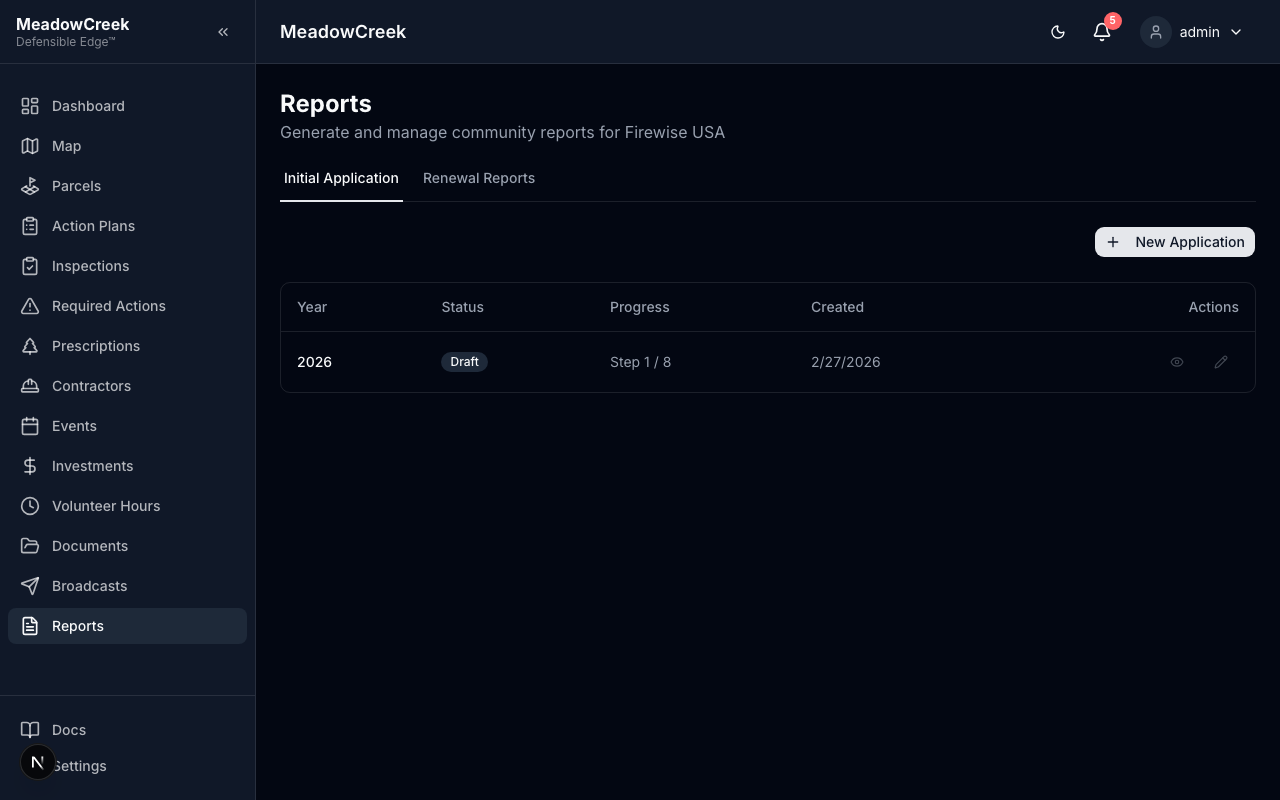
The page walks you through:
- Community profile — name, jurisdiction, dwelling units, contact info
- Risk assessment summary — auto-derived from parcel risk levels
- Action plan summary — your priority projects for the first year
- Educational outreach — work days, training, communications planned
- Investment threshold — community contribution (cash + volunteer hours @ federal hourly rate)
- Generate PDF — produces the submission-ready packet
Renewal Reports
Once you’ve been recognized, the Renewal page is where you generate the annual recertification packet. It’s the application’s leaner cousin — focuses on what changed this year and how the community met the annual contribution threshold.
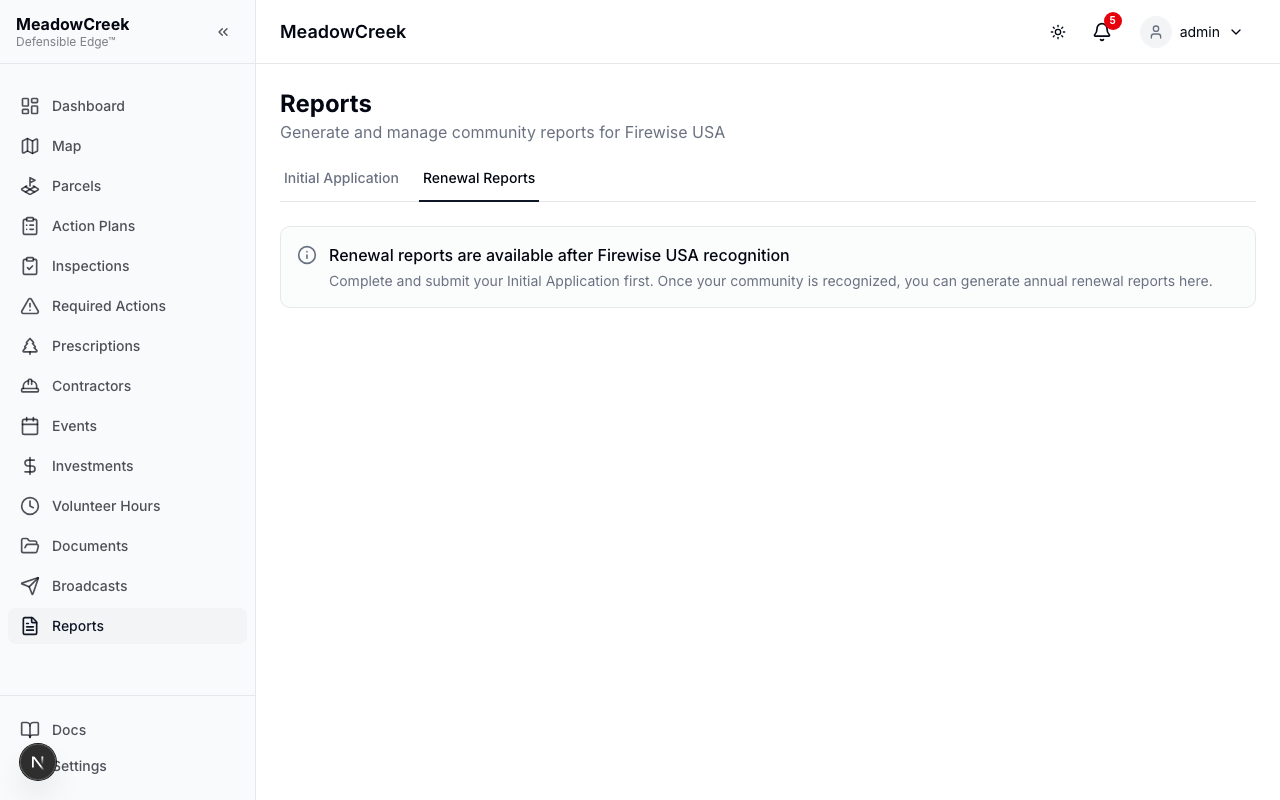
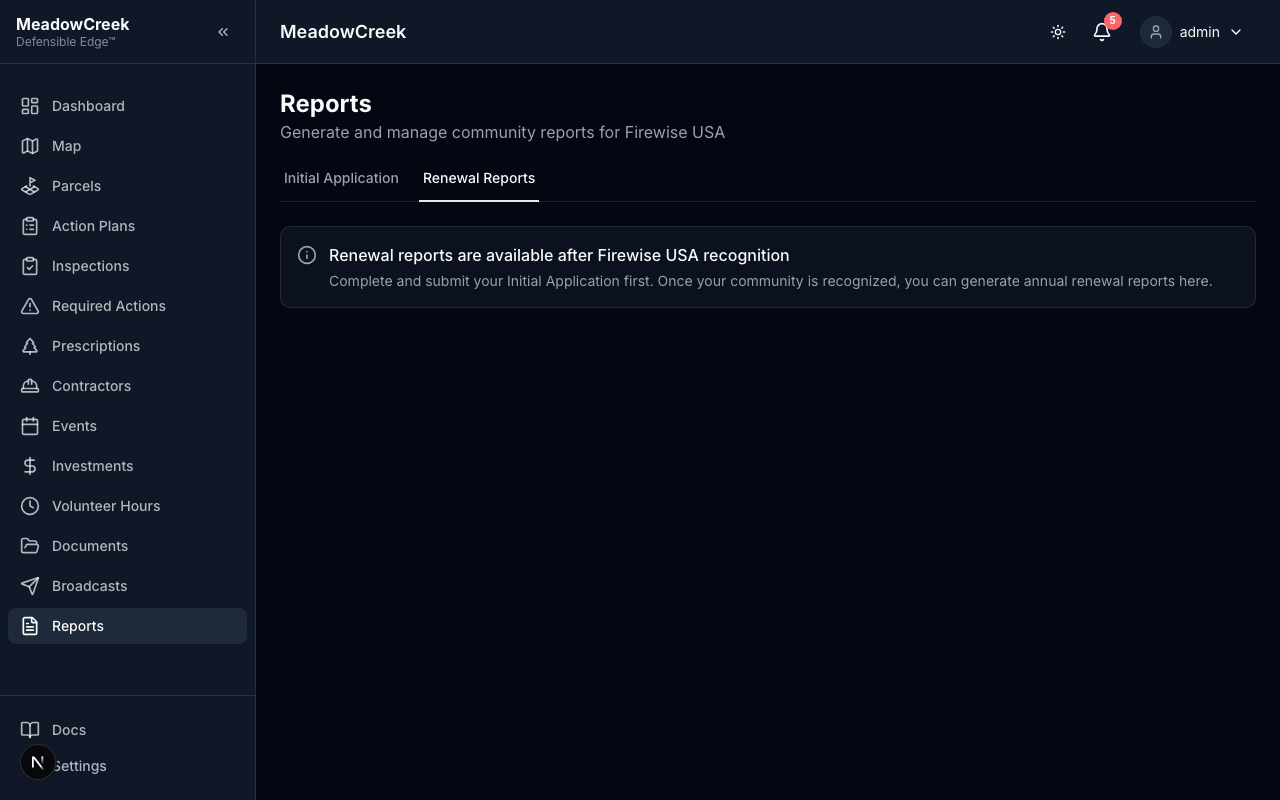
Each renewal pulls in:
- Volunteer hours logged this year
- Investments recorded this year
- Inspections completed this year
- Outreach activities (events, broadcasts) this year
The system calculates whether you’ve met the annual threshold (1 volunteer hour per dwelling unit minimum, or equivalent dollar contribution) and warns you if you haven’t.
Workflow
Both report types follow the same pattern:
- Draft — populate, review, edit
- Generate PDF — produces the official packet
- Submit to Firewise USA® — done outside the platform (email or upload to portal)
- Archive — the generated PDF is added to your Documents library automatically
Related deep dives
- Initial application — full walkthrough of first-time recognition
- Renewal reports — annual recertification details